

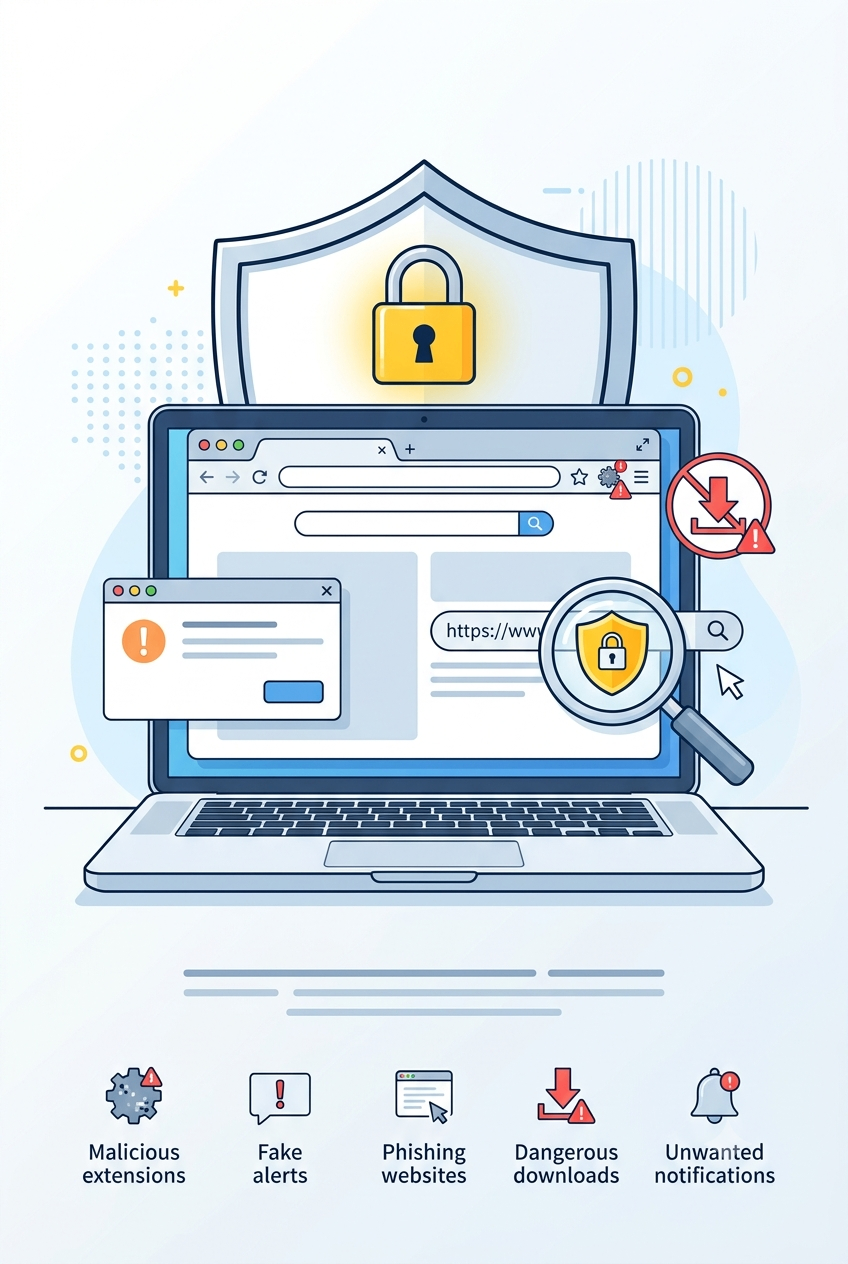
Web browsers are used to access email, banking, social media, cloud storage, shopping websites, business systems, and many other online services.
Because the browser connects users to so much personal and business information, attackers frequently target it through malicious extensions, fake notifications, unsafe downloads, fraudulent websites, and misleading security warnings.
A browser may look normal while an unsafe extension or permission is monitoring activity, redirecting searches, displaying advertisements, or attempting to capture sensitive information.
Protecting the browser is therefore an important part of protecting your accounts, device, and digital identity.
Why browser security matters
A browser may store or provide access to:
- Saved passwords.
- Active login sessions.
- Browsing history.
- Downloaded files.
- Autofill information.
- Payment details.
- Email and cloud accounts.
- Website permissions.
- Personal and business applications.
If the browser is compromised, an attacker may not need to attack every account separately.
A malicious extension or stolen session may allow unauthorized access to information already available through the browser.
Keep your browser updated
Browser updates often include security fixes for known vulnerabilities.
An outdated browser may contain weaknesses that malicious websites or downloaded content can exploit.
Enable automatic updates where possible and restart the browser when required.
Also update:
- The operating system.
- PDF readers.
- Office applications.
- Browser extensions.
- Security software.
Updates should be downloaded only through the browser’s official update feature or the vendor’s official website.
Do not install an “urgent browser update” from an unexpected website pop-up.
What are browser extensions?
Browser extensions are small programs that add features to a browser.
Examples include:
- Password managers.
- Advertisement blockers.
- Translation tools.
- Screenshot utilities.
- Shopping assistants.
- Grammar checkers.
- Productivity tools.
- Security extensions.
An extension may be useful, but it can also receive significant access to browser activity.
Depending on its permissions, an extension may be able to:
- Read website content.
- Change information on webpages.
- View browsing history.
- Access copied text.
- Manage downloads.
- Redirect searches.
- Read form entries.
- Interact with open tabs.
Because of this, extensions should be treated like applications, not harmless browser decorations.
Risks of malicious extensions
A malicious or compromised extension may:
- Display unwanted advertisements.
- Redirect searches.
- Replace legitimate links.
- Track browsing behavior.
- Collect personal information.
- Capture login details.
- Read sensitive webpage content.
- Download additional software.
- Change browser settings.
- Send users to phishing websites.
An extension may initially be safe and later become risky if it is sold, abandoned, or compromised.
Regular reviews are therefore important even for extensions installed from an official store.
How to check an extension before installing it
Before installing a browser extension, review:
- The developer name.
- The official website.
- Permissions requested.
- Number and quality of reviews.
- Update history.
- Privacy policy.
- Whether the extension is still maintained.
- Whether its features are already built into the browser.
Be cautious if:
- The developer imitates a famous company.
- The extension requests access to all websites without a clear reason.
- Reviews appear repetitive or artificial.
- The description contains unrealistic promises.
- The privacy policy is missing.
- The extension has recently changed ownership.
- The extension asks you to disable browser protections.
A simple tool should not require unlimited access to every page unless its purpose clearly depends on that access.
Review installed extensions regularly
Many users install an extension once and forget about it.
Open the browser’s extension-management page and remove anything that:
- You no longer use.
- You do not recognize.
- Has excessive permissions.
- Has not been updated.
- Was installed for a temporary task.
- Is no longer available from a trusted source.
Reducing the number of extensions lowers the browser’s attack surface.
On work devices, install only extensions approved by the organization.
Fake browser warnings
Fraudulent websites may display messages such as:
- Your computer is infected.
- Your browser is outdated.
- Your device has several viruses.
- Your files are at risk.
- Call technical support immediately.
- Install this security tool.
- Your account has been blocked.
These warnings may use flashing colors, alarms, countdown timers, or familiar company logos.
A website normally cannot perform a complete security scan of your device simply because you visited the page.
Do not:
- Call the displayed phone number.
- Install the suggested software.
- Allow remote access.
- Enter payment information.
- Disable your security software.
- Click repeated “Clean Now” buttons.
Close the tab or browser. If the page prevents closing, use the operating system’s task-management tools or ask trusted technical support for help.
Browser notification scams
Some websites ask permission to send notifications.
After approval, they may display messages that resemble:
- System alerts.
- Antivirus warnings.
- Delivery notifications.
- Prize messages.
- Account warnings.
- Fake software updates.
These notifications may appear even when the original website is closed.
Before selecting Allow, ask whether the website genuinely needs notification access.
A news site may use notifications for headlines, but a random download or streaming page usually does not need to send urgent security alerts.
How to remove unwanted browser notifications
If suspicious notifications appear:
- Open the browser settings.
- Find site permissions or notification settings.
- Review the list of allowed websites.
- Remove or block unknown sites.
- Clear suspicious website data.
- Review installed extensions.
- Run an approved security scan if necessary.
Do not click the notification to investigate it.
Check website addresses carefully
Attackers create websites that resemble trusted services.
A fake address may use:
- Misspelled company names.
- Additional words.
- Extra letters or numbers.
- Misleading subdomains.
- Unusual domain extensions.
- Shortened links.
- Characters that look similar to normal letters.
Before entering passwords, payment details, or personal information, check the complete domain name.
For important accounts, open the official application or type the known website address manually.
A professional design or lock icon does not prove that the website is legitimate.
HTTPS does not guarantee trust
HTTPS encrypts the connection between the browser and the website.
It helps prevent others on the network from easily reading the traffic, but it does not confirm that the website belongs to a trustworthy organization.
Phishing websites can also use HTTPS.
Always verify:
- The domain name.
- The purpose of the page.
- The sender of the link.
- Whether the request was expected.
- Whether the organization can be confirmed independently.
Be careful with browser autofill
Autofill may store:
- Names.
- Addresses.
- Phone numbers.
- Email addresses.
- Payment information.
This is convenient, but it can expose information on shared or compromised devices.
Do not save sensitive information in a browser used by several people.
Regularly review saved addresses and payment methods, and remove anything outdated.
For highly sensitive data, consider entering information manually or using a trusted payment service.
Saved passwords and browser security
Saving passwords in a trusted browser or password manager can be safer than reusing weak passwords.
However, saved credentials are only as secure as:
- The device screen lock.
- The operating-system account.
- Browser security.
- Device encryption.
- Malware protection.
- Account MFA.
Never save passwords on public, shared, hotel, or workplace reception computers.
Use a dedicated password manager when stronger control and cross-device security are required.
Active sessions and stolen cookies
Websites may keep users signed in through session cookies.
If an attacker steals an active session, they may sometimes access the account without entering the password again.
Reduce this risk by:
- Keeping the browser and device updated.
- Avoiding malicious extensions.
- Signing out of shared devices.
- Reviewing active sessions.
- Removing unknown devices.
- Avoiding untrusted downloads.
- Using trusted security software.
- Protecting important accounts with MFA.
Changing the password may not always close every session automatically, so use the account’s “sign out all devices” option when available.
Avoid unknown downloads
Be cautious when a website asks you to download:
- A browser update.
- A video player.
- A document viewer.
- A security certificate.
- A browser extension.
- A codec.
- A support tool.
- A file required to view a page.
Modern browsers already support most common content formats.
Download software only from official vendor websites or approved application stores.
Files with misleading names or multiple extensions should receive additional caution.
Check downloaded file types
A file may appear to be a document or image while actually being an executable program.
Examples of potentially dangerous file types include programs, scripts, installers, and macro-enabled documents.
Do not depend only on the file icon.
Before opening an unexpected file:
- Confirm the sender.
- Check the file extension.
- Verify why it was sent.
- Scan it using an approved security tool.
- Contact IT if it involves a work device.
Be careful with browser redirects
Unexpected redirects may occur because of:
- Malicious advertisements.
- Unsafe extensions.
- Compromised websites.
- Notification permissions.
- Unwanted software.
- Incorrect browser settings.
Warning signs include:
- Search results opening unfamiliar pages.
- The homepage changing without permission.
- New tabs opening repeatedly.
- Frequent gambling or adult advertisements.
- Downloads beginning automatically.
- Security warnings appearing on unrelated websites.
If redirects continue across several websites, review extensions, browser settings, and installed applications.
Use separate browser profiles
Browser profiles can separate:
- Personal activity.
- Work accounts.
- Testing.
- Shared family use.
For example, a dedicated work profile can contain only approved extensions and business accounts.
This reduces accidental mixing of personal and company information.
However, separate profiles do not replace strong device security. Anyone with access to the operating-system account may still reach the profiles.
Avoid sensitive activity on public computers
Public and shared computers may contain:
- Monitoring software.
- Saved sessions.
- Malicious extensions.
- Keyloggers.
- Unsafe browser settings.
Avoid using them for:
- Banking.
- Email.
- Password changes.
- Business systems.
- Cloud storage.
- Identity verification.
- Account recovery.
If you must use one, avoid saving passwords and sign out completely afterward. Change critical credentials from a trusted device if you suspect the system was unsafe.
Browser security for businesses
Businesses should manage browsers through approved policies.
Organizations should consider:
- Automatic browser updates.
- Approved extension lists.
- Blocking unsafe extensions.
- Limiting local administrator access.
- Monitoring browser versions.
- Separating personal and business profiles.
- Disabling password saving where inappropriate.
- Enforcing secure browsing settings.
- Training employees to recognize fake browser alerts.
Employees should report unusual redirects, new extensions, or repeated security pop-ups.
Warning signs of a browser problem
Possible warning signs include:
- The homepage changes unexpectedly.
- The search engine changes.
- Unknown extensions appear.
- Searches redirect to unfamiliar websites.
- Frequent pop-ups appear.
- Browser performance becomes unusually slow.
- Websites request repeated notification permissions.
- Downloads start without approval.
- New toolbars appear.
- Security settings are disabled.
One sign may have a normal explanation, but several unexpected changes should be investigated.
What to do if your browser behaves strangely
Take the following steps:
- Stop entering passwords or payment information.
- Close suspicious tabs.
- Review and remove unknown extensions.
- Check notification permissions.
- Clear suspicious site data.
- Update the browser and operating system.
- Run an approved security scan.
- Review recently installed software.
- Reset browser settings if necessary.
- Change important passwords from a known-clean device.
For a work device, report the issue to IT or security before deleting evidence or making major changes.
What to do after entering a password on a fake website
Act quickly:
- Open the official service directly.
- Change the password.
- Change it anywhere else it was reused.
- Enable or review MFA.
- Sign out all active sessions.
- Review recovery information.
- Remove unknown devices.
- Watch for follow-up phishing attempts.
- Inform IT if it was a work account.
If an MFA code was also entered, treat the account as potentially compromised.
A practical browser-security checklist
Review your browser and confirm that:
- It is fully updated.
- Only necessary extensions are installed.
- Website notification permissions are limited.
- The default search engine is correct.
- The homepage has not changed unexpectedly.
- Saved passwords are protected.
- Unknown sessions are removed.
- Downloads come from trusted sources.
- Sensitive accounts use MFA.
- Shared devices do not store personal credentials.
Final advice
The browser is one of the main gateways to your digital life.
Keep it updated, limit extensions, check website addresses, avoid fake warnings, and review permissions regularly.
Do not trust a page simply because it looks professional or displays a familiar logo.
A secure browser helps protect your passwords, active sessions, personal information, business accounts, and online payments.
You can also test your awareness through the Cybersecurity Quiz on BTSec Hub and practise recognizing suspicious websites, unsafe downloads, and browser-based threats.
Suggested Excerpt
Malicious extensions, fake browser warnings, unsafe downloads, and notification scams can expose accounts and personal data. Learn how to secure your browser and identify suspicious behavior.