

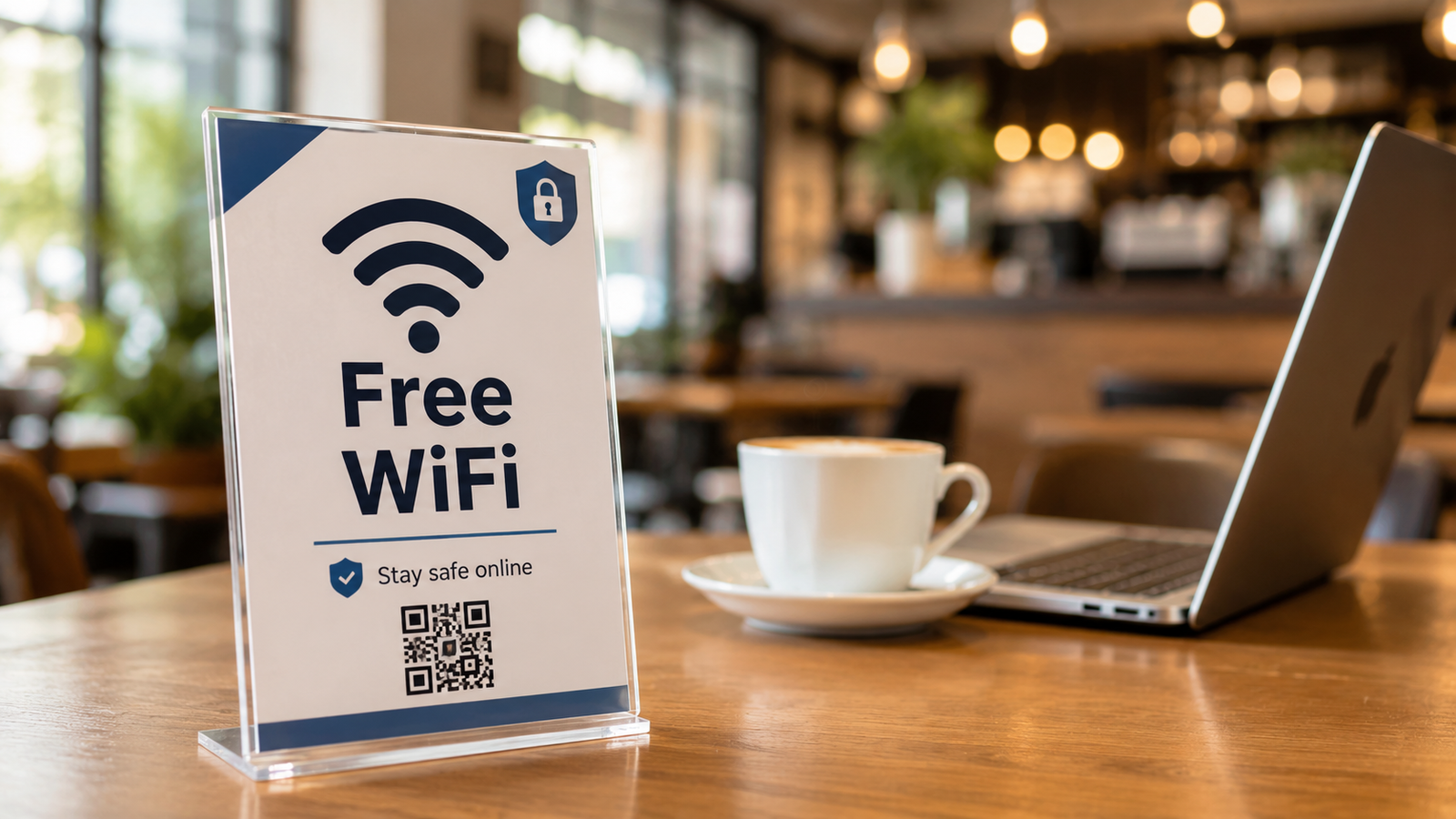
Public Wi-Fi is available almost everywhere. You can find it in cafés, airports, hotels, shopping malls, restaurants, schools, libraries, and other public areas.
These networks are convenient, especially when mobile data is limited, expensive, or unavailable. However, public Wi-Fi should not be trusted in the same way as a private home or workplace network.
The main problem is not that every public network is dangerous. The problem is that users often do not know who controls the network, how securely it is configured, or who else is connected to it.
Using public Wi-Fi safely requires a few practical precautions before, during, and after connecting.
Why public Wi-Fi can be risky
Public Wi-Fi networks may be open, weakly protected, or shared by many unknown users.
Some networks do not require a password. Others use one shared password that is displayed publicly or given to every customer. A password in this situation does not necessarily make the network private or trustworthy.
Possible risks include:
- Connecting to a fake network.
- Visiting a fraudulent login page.
- Exposing activity through unsafe applications or websites.
- Accidental file or device sharing.
- Attackers attempting to target devices on the same network.
- Entering sensitive information while connected to an untrusted service.
- Automatic reconnection to a network with a familiar name.
Not every public Wi-Fi connection results in an attack, but the level of trust should remain low.
Fake Wi-Fi networks
One of the most common public Wi-Fi risks is a fake access point.
An attacker may create a network with a name similar to the legitimate network provided by a café, hotel, airport, or conference venue.
For example, the legitimate network might be:
Hotel_Guest
A fake network could be named:
Hotel_Guest_Free
or:
Hotel_Guest_5G
A user may connect because the name looks familiar or because the fake network has a stronger signal.
Once connected, the attacker may attempt to display fake login pages, redirect users to suspicious websites, or encourage them to enter personal information.
Confirm the official network name
Before connecting, verify the exact network name with an employee, official sign, hotel information sheet, or another trusted source.
Do not choose a network only because:
- It includes the name of the location.
- It has the strongest signal.
- It says “Free Wi-Fi.”
- It does not require a password.
- Other people appear to be using it.
If several similar network names appear, ask staff which one is official.
Be careful with Wi-Fi login pages
Some public networks use a captive portal. This is the page that appears after connecting and may ask you to accept terms, enter a room number, provide an email address, or confirm access.
A captive portal does not automatically mean the network is malicious, but users should still be cautious.
Do not enter:
- Your main email password.
- Banking credentials.
- Social media passwords.
- Work account details.
- Verification codes.
- Payment card details unless the service is clearly legitimate and necessary.
A public Wi-Fi portal should not normally ask for the password to your personal email or social media account.
Activities to avoid on public Wi-Fi
When possible, avoid high-risk activities while connected to a public network.
These include:
- Logging into online banking.
- Making financial transfers.
- Entering credit card information.
- Changing important passwords.
- Accessing administrator panels.
- Managing website or server settings.
- Accessing sensitive company systems.
- Uploading confidential documents.
- Sending private business information.
- Connecting to remote management tools without approved protection.
- Downloading files from unknown sources.
For sensitive tasks, mobile data or a trusted personal hotspot is usually the safer choice.
Use mobile data for important accounts
Mobile data is not completely free from risk, but it is generally preferable to an unknown public Wi-Fi network for activities such as:
- Banking.
- Password changes.
- Business administration.
- Accessing confidential files.
- Account recovery.
- Approving important payments.
- Managing security settings.
A personal hotspot can also be safer than connecting directly to an unknown shared network, provided the hotspot uses a strong password and modern security settings.
Use HTTPS, but understand its limits
HTTPS encrypts the connection between your browser and the website. You can usually identify it by:
https://at the beginning of the address.- A lock or connection-security indicator in the browser.
- The absence of browser certificate warnings.
HTTPS helps protect information while it travels between your device and the website.
However, HTTPS does not prove that the website itself is legitimate.
A phishing website can also use HTTPS. For example, a fake banking page may have a valid certificate but still use the wrong domain name.
Always check:
- The complete website address.
- The spelling of the domain.
- Whether the site is the official service.
- Whether the request was expected.
- Whether the browser shows a security warning.
Never continue past a certificate warning when entering sensitive information.
What a VPN can and cannot do
A trusted VPN can encrypt traffic between your device and the VPN provider, which can reduce some risks when using public networks.
A VPN can be especially useful for employees accessing approved business systems while travelling.
However, a VPN does not protect you from every threat.
A VPN cannot automatically protect you from:
- Phishing websites.
- Malicious downloads.
- Fake applications.
- Sharing passwords with attackers.
- Approving fraudulent MFA requests.
- Malware already installed on the device.
- Unsafe activity after connecting to a suspicious website.
The VPN provider must also be trustworthy. Avoid unknown free VPN applications that request unnecessary permissions or provide unclear privacy information.
Employees should use the VPN service approved by their organization.
Turn off automatic connection
Many devices can automatically reconnect to remembered Wi-Fi networks.
This is convenient at home, but it can create unnecessary risk in public areas. A device may attempt to connect to a network with a familiar name without requiring clear confirmation.
Before travelling or regularly using public Wi-Fi:
- Disable automatic connection to open networks.
- Set the device to ask before joining new networks.
- Remove old public networks that are no longer needed.
- Avoid automatically joining hotspots.
- Review saved network names periodically.
After leaving a café, hotel, airport, or event, use the “Forget This Network” option if you do not need the network again.
Disable unnecessary sharing features
File sharing, printer discovery, network discovery, and device sharing may be useful on a trusted home or office network, but they should generally be disabled on public networks.
On laptops, make sure the network is classified as public rather than private when the operating system asks.
Also review features such as:
- File and folder sharing.
- Nearby sharing.
- AirDrop or similar services.
- Network discovery.
- Printer sharing.
- Remote access.
- Media sharing.
- Bluetooth visibility.
Only enable them when needed, and restrict who can connect.
Keep the firewall enabled
A firewall helps control unexpected network connections to and from the device.
Do not disable the firewall simply because a hotel or public network is having connection problems.
If the network does not work correctly, try reconnecting, contacting the network provider, or switching to mobile data rather than weakening the device’s security.
Keep your device updated
Security updates fix known weaknesses in operating systems, browsers, network components, and applications.
Before travelling or using public networks regularly, update:
- The operating system.
- The web browser.
- Security software.
- VPN software.
- Email and messaging applications.
- Remote-access tools.
- Frequently used mobile applications.
An outdated device may remain vulnerable even when the user follows other safe browsing practices.
Protect the device itself
Public Wi-Fi safety also depends on physical device security.
Use:
- A strong screen lock.
- Automatic locking after inactivity.
- Device encryption.
- Biometric login where appropriate.
- Find-my-device features.
- Secure backup options.
- A separate user account without unnecessary administrator privileges.
Never leave a laptop or phone unattended in a café, airport, hotel lobby, or shared work area.
Avoid entering credentials after unexpected redirects
While using public Wi-Fi, you may be redirected to a login or verification page.
Stop if the page unexpectedly asks for:
- Your Microsoft, Google, or Apple password.
- Your work email credentials.
- A social media login.
- Banking information.
- A verification code.
- A software installation.
- Browser notifications.
- A device security profile.
Close the page and verify the network with staff.
A legitimate network should not require installation of unknown software or security certificates on your personal device.
Be careful with QR codes
Some locations provide QR codes that open Wi-Fi details or login pages.
QR codes can be replaced or covered with fraudulent stickers. Before opening a QR code:
- Check whether it appears to be an official sign.
- Look for signs of tampering.
- Preview the destination when possible.
- Verify the domain before entering information.
- Ask staff if uncertain.
Treat a QR code like any other link.
Public Wi-Fi guidance for employees
Employees should be especially careful because work accounts and devices may provide access to business email, cloud files, internal systems, customer information, and administrative tools.
Organizations should establish clear remote-work and travel guidance covering:
- When public Wi-Fi may be used.
- When mobile data or a hotspot is required.
- Use of the approved company VPN.
- MFA requirements.
- Restrictions on confidential work.
- Secure access to cloud services.
- Reporting lost or stolen devices.
- Reporting suspicious Wi-Fi activity.
- Avoiding shared public computers.
- Updating devices before travel.
Sensitive administrative tasks should not be performed from unknown networks unless the organization has specifically approved the method and security controls.
Never use shared public computers for important accounts
Computers in hotels, libraries, business centres, and public areas may be monitored, infected, misconfigured, or configured to retain browser information.
Avoid using shared computers for:
- Email.
- Banking.
- Cloud storage.
- Work accounts.
- Password managers.
- Social media.
- Account recovery.
- Uploading confidential documents.
Private browsing mode does not protect against malware, keyloggers, or system-level monitoring.
What to do before connecting
Use this checklist before joining public Wi-Fi:
- Confirm the official network name.
- Update your device and browser.
- Enable the firewall.
- Disable unnecessary sharing.
- Turn off automatic connection.
- Use mobile data for sensitive tasks.
- Prepare an approved VPN when required.
- Make sure the device has a secure screen lock.
- Avoid networks that request unusual information.
- Do not ignore certificate or browser security warnings.
What to do while connected
While using the network:
- Visit only websites you trust.
- Check the complete domain name.
- Avoid sensitive transactions.
- Do not download unexpected files.
- Reject suspicious MFA notifications.
- Keep the VPN connected if your organization requires it.
- Avoid leaving the device unattended.
- Disconnect if the connection behaves unexpectedly.
- Do not install unknown applications, profiles, or certificates.
What to do after disconnecting
After using a public network:
- Disconnect when you no longer need it.
- Forget the network if you will not use it again.
- Turn off Wi-Fi when appropriate.
- Review important account alerts.
- Check for unexpected sign-ins.
- Sign out of sensitive services if necessary.
- Report suspicious behavior involving a work device.
- Remove any configuration profile you were unexpectedly asked to install.
Warning signs after using public Wi-Fi
Pay attention if you notice:
- Unexpected password-reset emails.
- Login alerts from unknown locations.
- Repeated MFA approval requests.
- Browser redirects.
- New applications or extensions.
- Security certificate warnings.
- Changed account-recovery information.
- Unknown active sessions.
- Unusual account messages or transactions.
These signs do not always prove that the Wi-Fi caused the problem, but they should be investigated quickly.
What to do if you entered information on a suspicious page
If you entered a password, verification code, or financial information on a suspicious page:
- Disconnect from the network.
- Open the official service using a trusted connection.
- Change the affected password.
- Sign out of unknown or active sessions.
- Enable or review MFA.
- Check account-recovery information.
- Change the password anywhere else it was reused.
- Review financial activity where relevant.
- Inform your bank if payment information may be exposed.
- Contact your IT or security team if a work account or device was involved.
Act quickly and do not hide the incident. Early action can reduce the damage.
Final takeaway
Public Wi-Fi can be useful, but it should be treated as an untrusted network.
The safest approach is to verify the network name, avoid sensitive activity, keep the device updated, disable unnecessary sharing, use mobile data when possible, and use an approved VPN when required.
Remember that HTTPS and VPNs improve protection, but they do not make phishing pages, suspicious downloads, or unsafe decisions harmless.
Connect carefully. Verify before entering information. Protect your accounts, device, and data.
Public Wi-Fi is available almost everywhere today. You can find it in cafés, airports, hotels, shopping malls, restaurants, schools, and public areas. It is convenient, especially when mobile data is limited or the connection is weak.
But public Wi-Fi can also create security risks if it is used without caution.
When you connect to a public network, you are sharing the same environment with many other unknown users. In some cases, attackers may use public Wi-Fi to monitor unsafe connections, create fake networks, or trick users into entering sensitive information.
This does not mean you should never use public Wi-Fi. It means you should use it carefully.
Why public Wi-Fi can be risky?
Public Wi-Fi networks are often open or weakly protected. Some networks do not require a password, while others use a shared password that many people know.
Attackers may take advantage of this by creating fake Wi-Fi networks with names that look similar to real ones. For example, a fake network may use the name of a café, hotel, or airport to make users trust it.
Once a user connects to a fake or unsafe network, their online activity may become more exposed, especially if they visit websites that are not properly secured or enter sensitive information.
What you should avoid on public Wi-Fi
When using public Wi-Fi, avoid doing sensitive activities unless you are sure the connection is secure.
Try to avoid:
Logging into bank accounts.
Entering credit card details.
Accessing sensitive work systems.
Sending confidential documents.
Using admin panels or business dashboards.
Downloading unknown files.
Entering passwords on suspicious pages.
If you must access important accounts, use mobile data or a trusted VPN when available.
Check the network name carefully
Before connecting, always confirm the correct Wi-Fi name with the place you are visiting. Do not connect to networks just because they have a familiar name.
Attackers may create names like “Free Airport Wi-Fi” or “Coffee Shop Guest” to attract users. If you are not sure, ask an employee for the official network name.
Use secure websites
When browsing, make sure websites use HTTPS. You can usually see a lock icon in the browser address bar. HTTPS helps protect the information exchanged between your device and the website.
However, HTTPS does not make every website safe. You still need to check that the website address is correct and not a fake copy of a trusted site.
Turn off auto-connect
Many devices automatically reconnect to known networks. This can be risky if your device connects to a network without asking you first.
It is better to turn off auto-connect for public networks and remove networks you no longer use.
Keep your device updated
Security updates help protect your device from known vulnerabilities. Before using public networks regularly, make sure your phone, laptop, browser, and security tools are updated.
Outdated devices may be easier to attack, especially on shared networks.
For employees and businesses
Employees should be extra careful when using public Wi-Fi for work. Company email, cloud files, dashboards, and internal systems may contain sensitive data.
Businesses should provide clear guidance for remote work and travel. Employees should know when to use VPN, when to avoid public Wi-Fi, and how to report suspicious activity.
Final takeaway
Public Wi-Fi is useful, but it should not be trusted blindly. Before connecting, check the network name, avoid sensitive activities, use secure websites, and keep your device updated.
Convenience is good, but safety should come first.
Connect carefully. Browse safely. Protect your data.